Salut toi ! Ever wrestled with the formatting beast in Word? You know, that moment when you just want page numbers… everywhere… except, you know, on that pristine, perfect cover page you worked so hard on?
Well, chérie/chéri, you're not alone! And guess what? There's a solution that's surprisingly simple and oh-so-satisfying: la numérotation sauf page de garde! (Translation: "page numbering except for the cover page!"... I just saved you a Google search, you're welcome!).
Think of it like this: your document is a party. The cover page? That's the cool, mysterious guest of honor who doesn't need an introduction (aka, a page number). The rest of the pages? They're the lively guests who do need to be identified, so everyone knows who's who.
Why Bother?
Okay, okay, I hear you. "Why should I care?" Here's why:
First, it looks professional. A numbered document screams "I'm organized and I know what I'm doing!" It's the little black dress of document formatting.
Second, it makes your reader's life easier. Imagine flipping through a 50-page report without page numbers. Nightmare fuel, right?
Third, it can actually be fun! Seriously. There's a certain satisfaction in mastering a technical skill, no matter how small. Think of it as conquering a tiny formatting dragon. Roar!
How to Tame the Beast (in Microsoft Word, because, let's be real)
Alright, let's get down to brass tacks. Here's the super-simplified version (because who has time for a novel?):
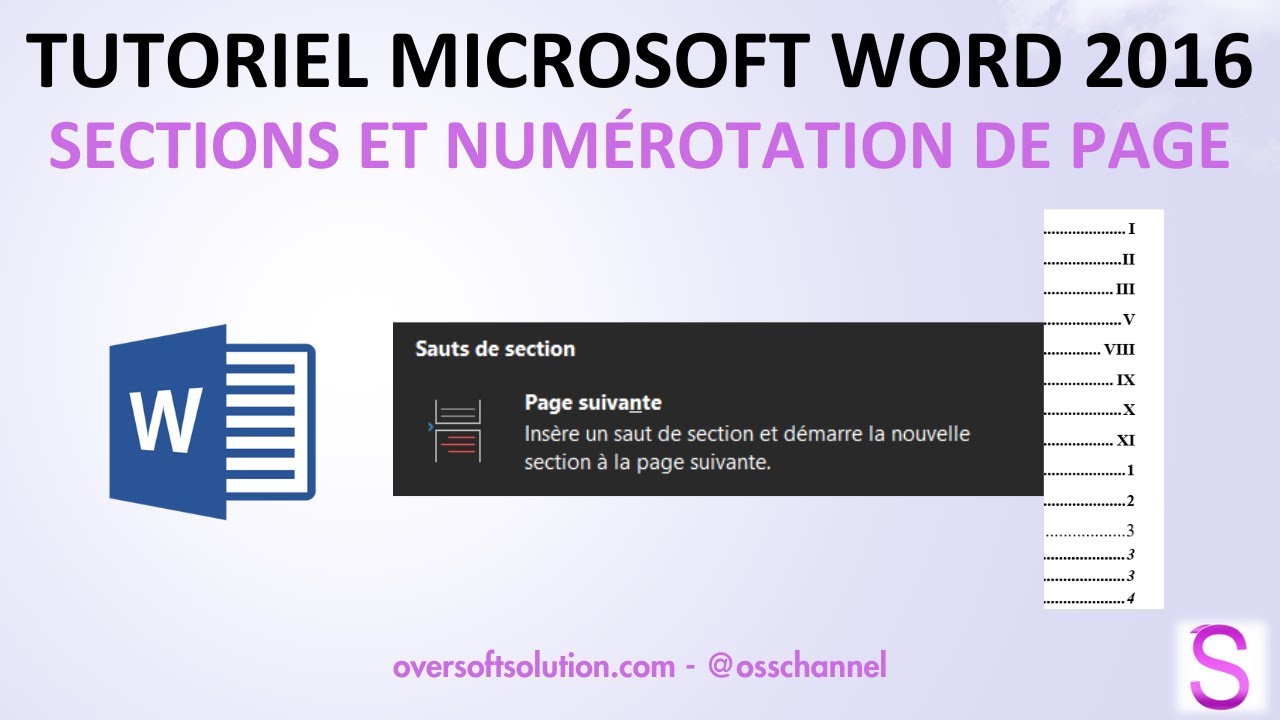
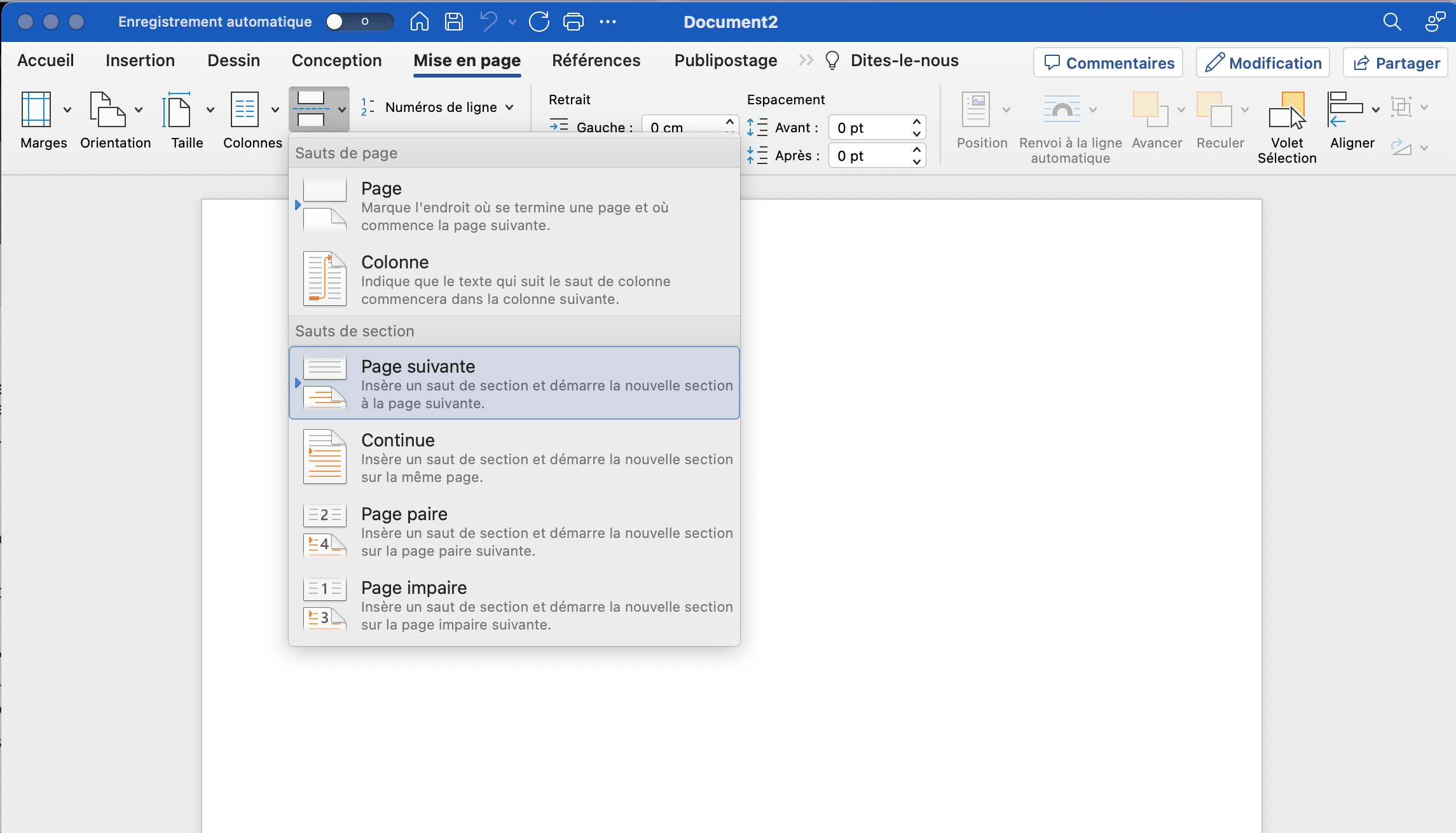
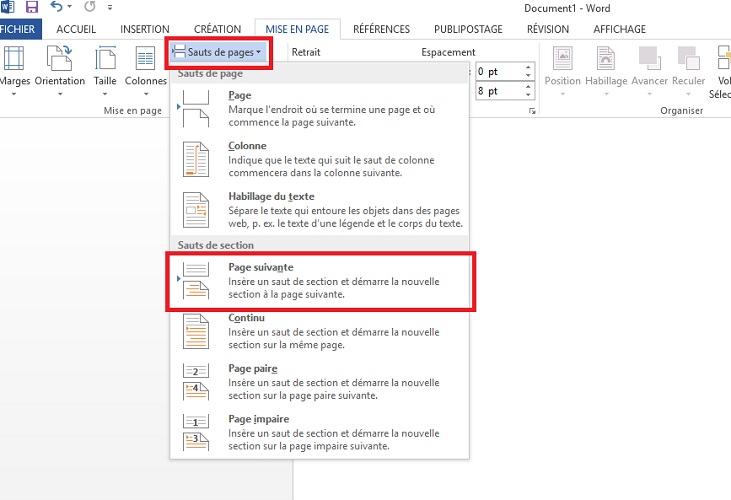
1. Insert a Section Break: Go to the "Layout" tab, click "Breaks," and choose "Next Page" after your cover page. This is your secret weapon! Think of it as creating a separate little universe for your document's content.
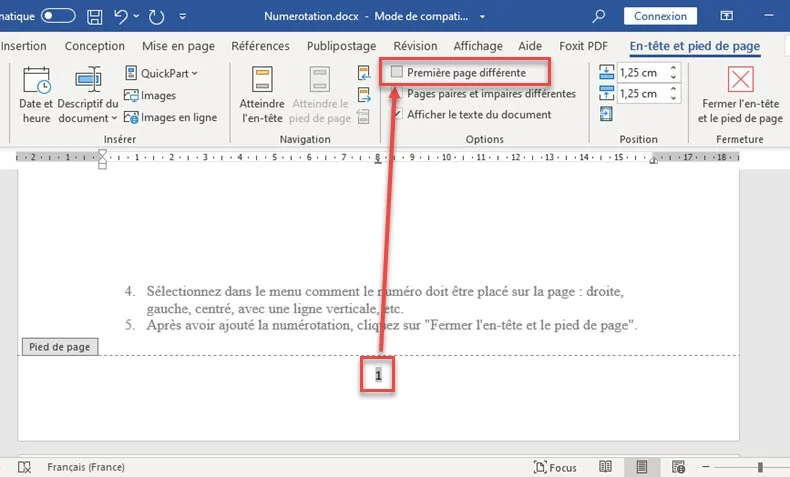
2. Link Status Double-click the header/footer of page 2 to activate it. IMPORTANT! Look for a box that says "Link to Previous" or similar. Make sure it's unchecked! This disconnects page 2's header/footer from page 1's. This is key!

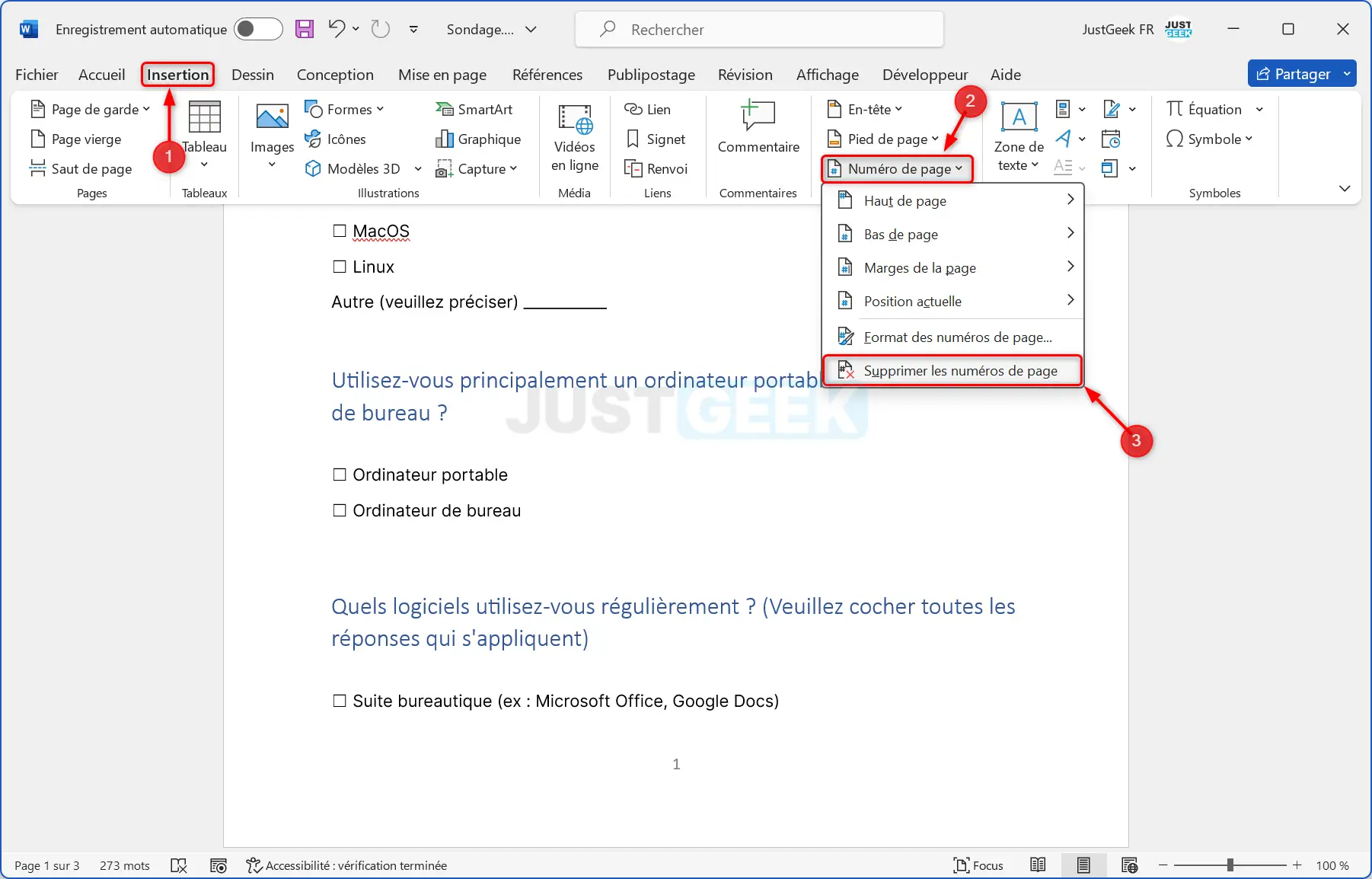
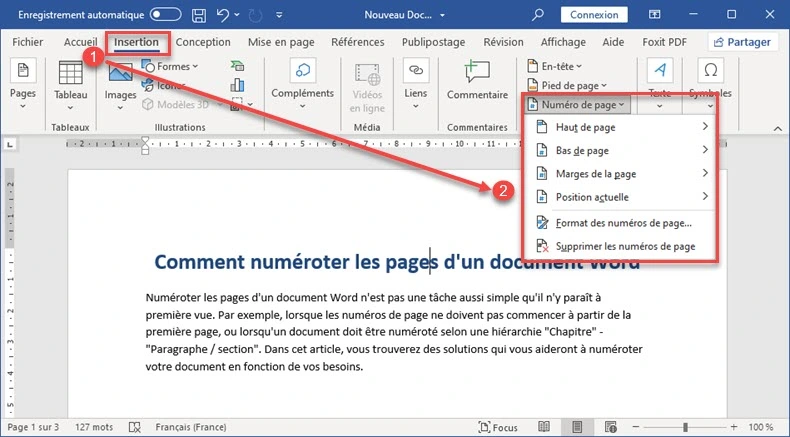
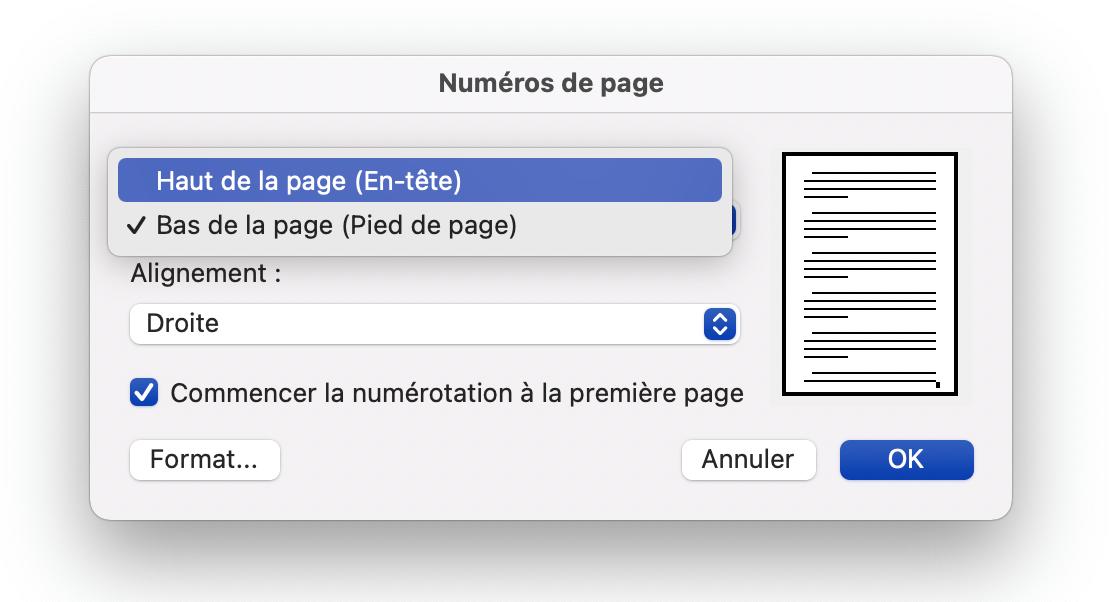
3. Insert Page Numbers: Now, go to the "Insert" tab and click "Page Number." Choose where you want your numbers to appear (top, bottom, etc.).
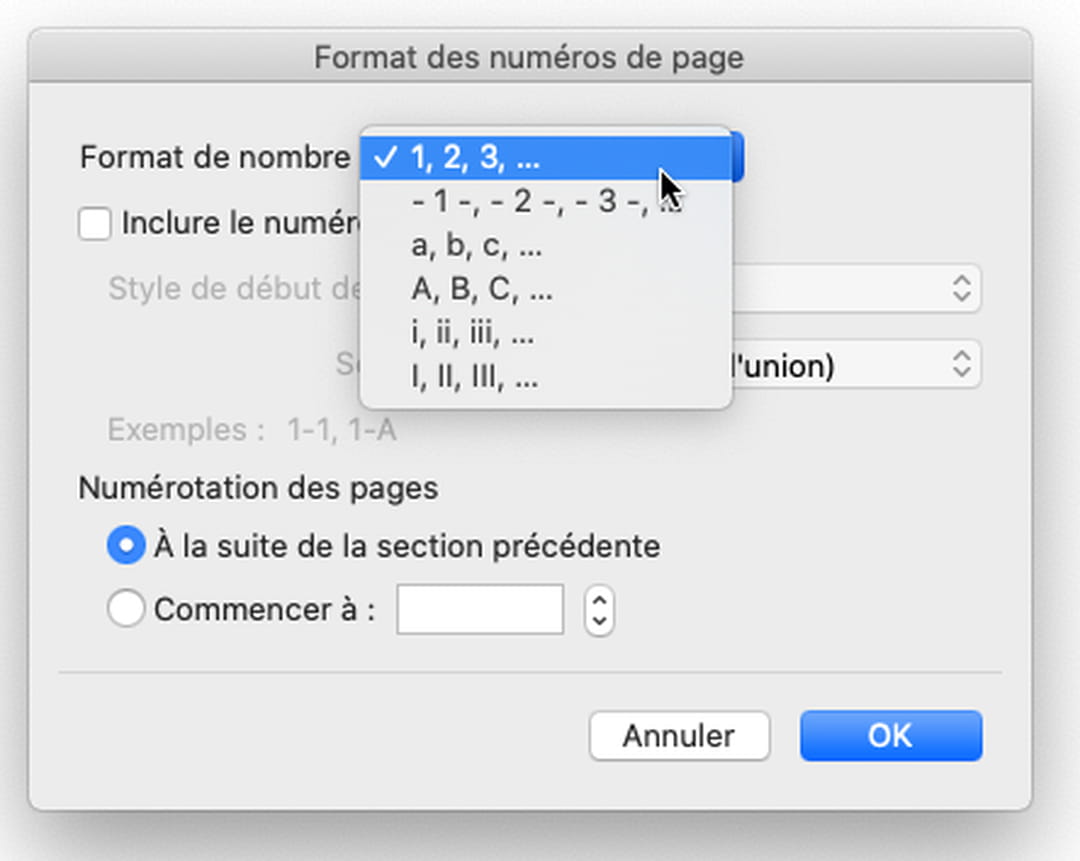
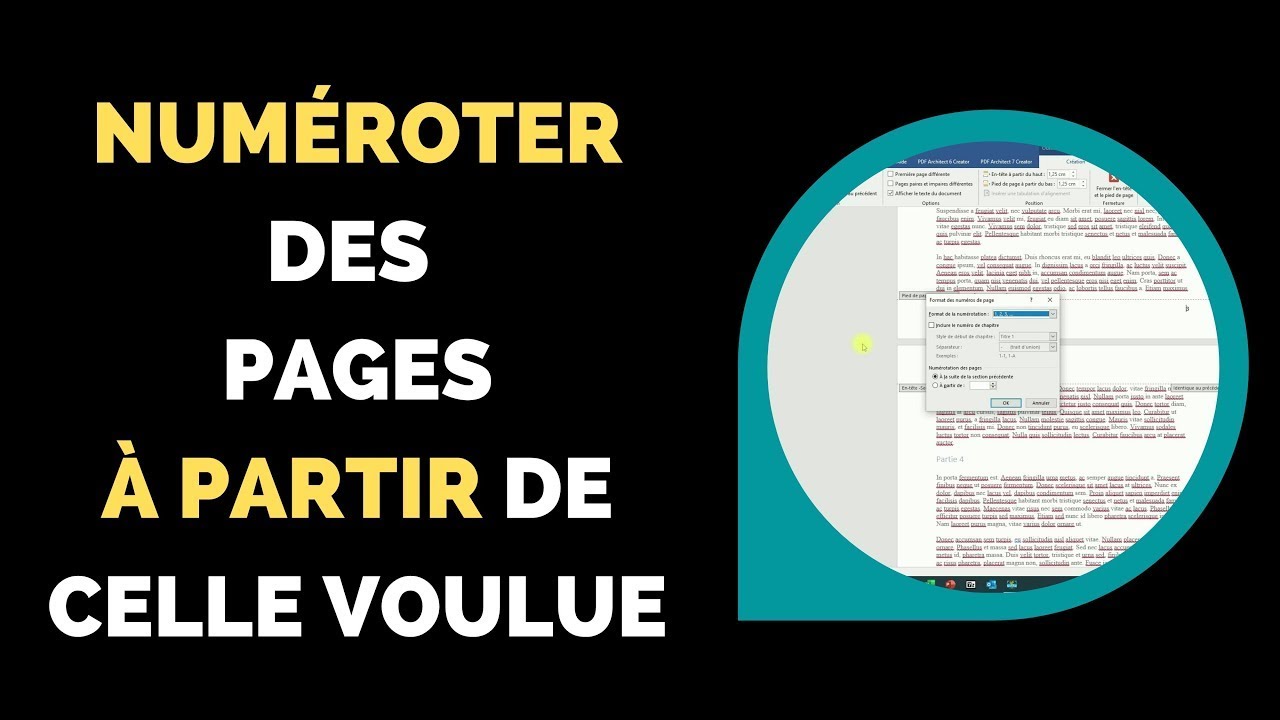
4. Format the Numbers: You probably don't want page 2 to be "page 1," right? Back in the "Insert" tab, find "Page Number" again and choose "Format Page Numbers." Tell Word to "Start at" the number you want (usually 1).
Voilà! You've done it! Now, go forth and conquer the world (or at least your next document).
The Joy of Learning
Seriously, taking the time to learn little things like this can make a huge difference. It boosts your confidence, makes your work look better, and, honestly, it's kind of empowering. It's like saying to the world, "I got this. I can handle formatting and life!"
Don't stop here! Explore other Word features, learn keyboard shortcuts, and become a formatting ninja. The more you learn, the more creative and efficient you'll become. And that, my friend, is a beautiful thing. Go get 'em!