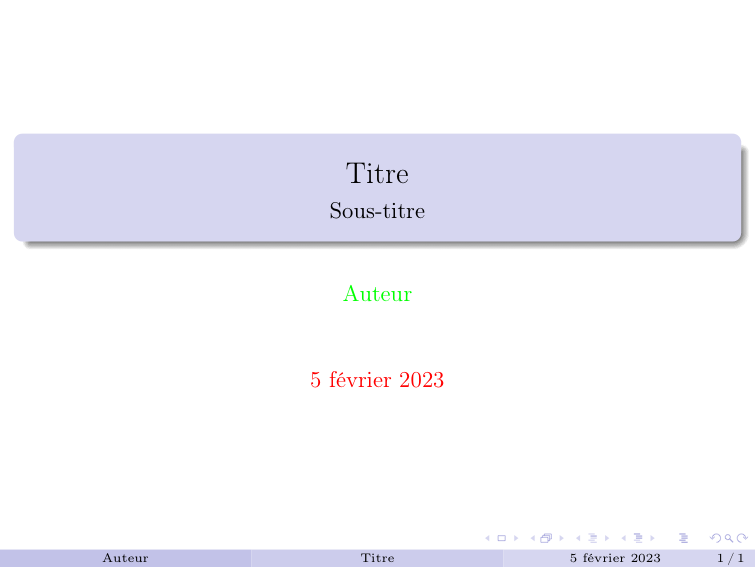
Okay, so imagine this: I'm rushing to a conference, presentation slides are last-minute (aren't they always?), and I realize… my Beamer presentation looks utterly generic. The title slide is just, well, words. Yikes! We've all been there, right? Feels like sending a postcard that just says "Greetings!" rather than, you know, something memorable.
That's when I thought, "There has to be a way to add a logo to that darn title page, and make it look professional without spending hours wrestling with LaTeX." And guess what? There is! So, let's dive into how to make your Beamer title page pop with a logo.
Adding a Logo: The Basics
The basic idea is to use the \includegraphics command. Sounds scary? Don't worry; it's your friend. Think of it as the "Hey LaTeX, stick this picture here!" command. You'll need to have your logo image handy, preferably in a format LaTeX likes (PDF, PNG, JPG usually work well).
Now, where you put it makes all the difference. You usually want to add it to your title page, inside the \titlepage environment.
The Code, Let's Go!
Here's a simple example:

\documentclass{beamer}
\usepackage{graphicx} % Important! Don't forget this package!

\title{My Amazing Presentation}
\author{Your Name}
\date{\today}

\begin{document}

\begin{frame}
\titlepage
\includegraphics[width=3cm]{mylogo.png} % Adjust width as needed!
\end{frame}

\end{document}
See that \includegraphics[width=3cm]{mylogo.png} line? That's where the magic happens. Replace mylogo.png with the actual filename of your logo. Adjust the width parameter to control the size. Playing with the width is crucial – you don't want your logo to eat the entire title!
Pro-Tip: Compile often! Check how the logo looks, adjust the size, recompile. Rinse and repeat until you’re happy. Trust me, it's worth the effort.

Fine-Tuning: Location, Location, Location!
Okay, so you have a logo. Great! But maybe it's sitting awkwardly in the middle of the page. LaTeX isn't always intuitive when it comes to positioning. To move your logo around, you might need to use commands like \vspace{}, \hspace{}, or even put the \includegraphics command inside a \begin{center} ... \end{center} environment. It's a bit like rearranging furniture, you just try different positions and see what works!
Another option, for even more control, is to use the \usebeamertemplate{title page} and modify its definition directly. This is a bit more advanced, and might require some digging in the Beamer documentation. However, if you're aiming for a really custom look, it's worth exploring.

Quick Recap:
- Include the
graphicxpackage. - Use
\includegraphicsto insert your logo. - Adjust the
widthparameter. - Use spacing commands or the
centerenvironment to fine-tune the logo's position. - Don't be afraid to experiment!
So, there you have it! A simple way to boost your Beamer presentation's visual appeal. No more boring title slides! Now go forth and brand those presentations! And seriously, remember to compile frequently. You'll save yourself a headache. Happy presenting!